AWS Integration
The Ledger Amazon Web Services (AWS) integration lets you scan and manage AWS IAM resources and secrets. It discovers long-lived AWS IAM access keys in your applications, and once that data is ingested, Ledger guides you through eradicating them by replacing access keys with AWS federation using Mint-issued identities. See the AWS federation tutorial for details.
Setup is a one-time configuration that supports multiple AWS accounts and Organization Units (OUs). CloudFormation StackSets onboard new accounts automatically as they are added to an OU.
What Data is Collected?
- Identities - AWS IAM users, groups, roles, policies, and OIDC providers.
- Secrets - AWS IAM access keys.
Supported Remediations
- Migrations: Migrate IAM access keys in Kubernetes resources to Mint-issued short-lived credentials.
Integration Permissions
The single-account AWS integration requires the following permission in your account(s):
AWS Integration Single-Account IAM Policy
PolicyDocument:
Version: '2012-10-17'
Statement:
    - Effect: Allow
    Action:
        # STS permissions
        - sts:GetCallerIdentity
        # IAM read permissions - required for scanning
        - iam:GetAccountAuthorizationDetails
        - iam:GetAccessKeyLastUsed
        - iam:ListAccessKeys
        - iam:ListRoles
        - iam:ListUsers
        - iam:ListOpenIDConnectProviders
        - iam:GetOpenIDConnectProvider
    Resource: '*'
    - Effect: Allow
    Action:
        # Integration self-access check
        - iam:SimulatePrincipalPolicy
    Resource: !Sub "arn:aws:iam::$${AWS::AccountId}:role/ledger-scanner-$${ScannerName}"
The multi-account integration continually scans for new accounts added, so it requires a superset of these permissions in the management account:
AWS Integration Multi-Account IAM Policy
PolicyDocument:
Version: '2012-10-17'
Statement:
    - Effect: Allow
    Action:
        # STS permissions
        - sts:GetCallerIdentity
        # IAM read permissions - required for scanning
        - iam:GetAccountAuthorizationDetails
        - iam:GetAccessKeyLastUsed
        - iam:ListAccessKeys
        - iam:ListRoles
        - iam:ListUsers
        - iam:ListOpenIDConnectProviders
        - iam:GetOpenIDConnectProvider
    Resource: '*'
    - Effect: Allow
    Action:
        # Integration self-access check
        - iam:SimulatePrincipalPolicy
    Resource: !Sub "arn:aws:iam::$${AWS::AccountId}:role/ledger-scanner-$${ScannerName}"
    - Effect: Allow
    Action:
        # Scan for accounts in the organization
        - organizations:DescribeOrganization
        - organizations:ListAccountsForParent
        - organizations:ListOrganizationalUnitsForParent
        - organizations:ListRoots
    Resource: '*'
    - Effect: Allow
    Action:
        - sts:AssumeRole
    Resource: !Sub "arn:aws:iam::*:role/ledger-scanner-$${ScannerName}"
Installation
No applications are required to be installed on the target environment. You configure permissions in IAM, and Defakto will use those to scan for resources remotely.
Prerequisites
For single-account integrations, an operator should be able to create the following resources in the target AWS account:
- CloudFormation Stack
- IAM OIDC Provider
- IAM Role
For organization-wide integrations, you should be able to create the following IAM resources in the target AWS account and have permissions to create CloudFormation StackSets in the management account:
- CloudFormation StackSet
- CloudFormation Stack
- IAM OIDC Provider
- IAM Role
Configuration of these resources is automated through Terraform provided during the setup process. You should have a recent version (>1.0) of Terraform or OpenTofu installed. For production environments, you should also consider using a shared or managed Terraform state backend.
Steps
The following steps are also available as spirlctl ledger integration aws in the CLI if programmatic setup is preferred.
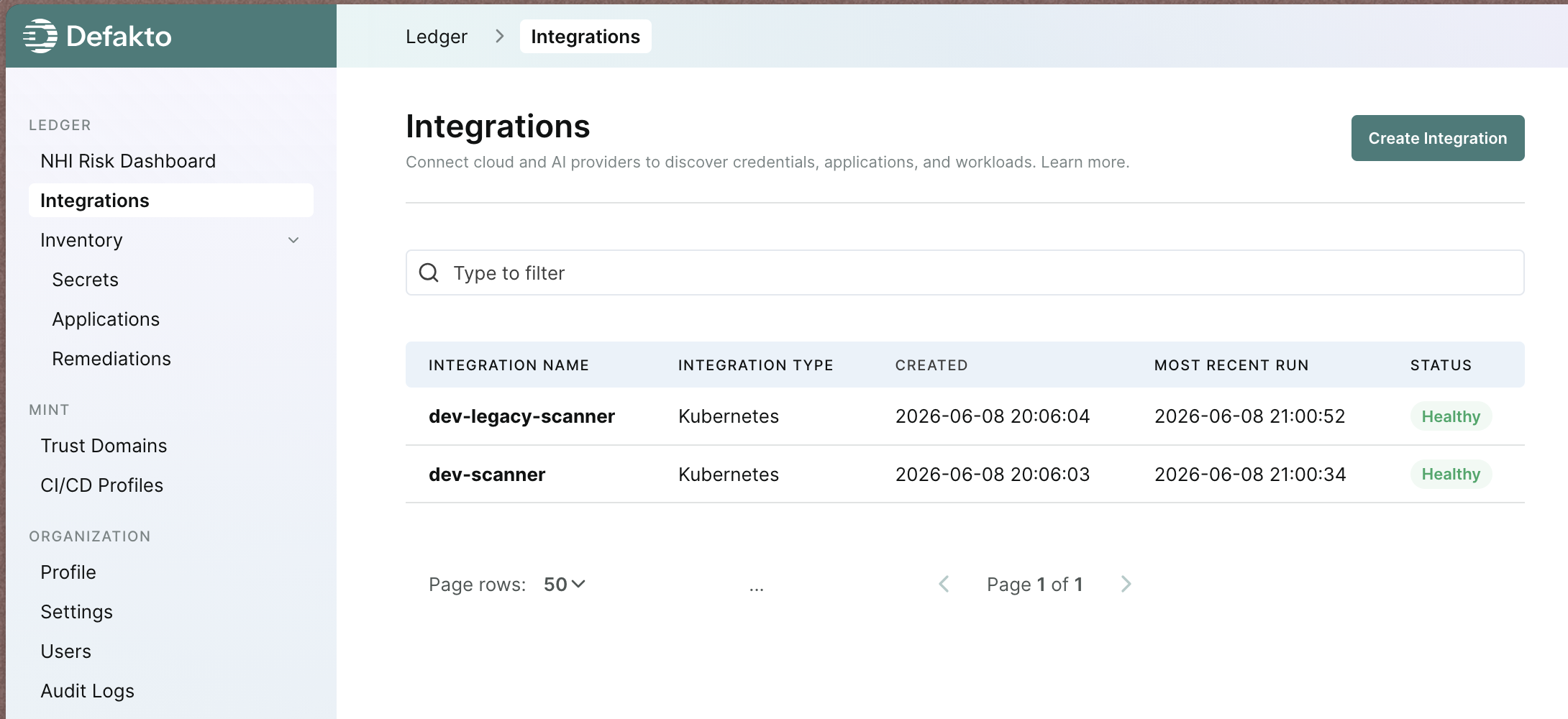
- Visit the "Integrations" page in the Defakto Console. Click "Create Integration".
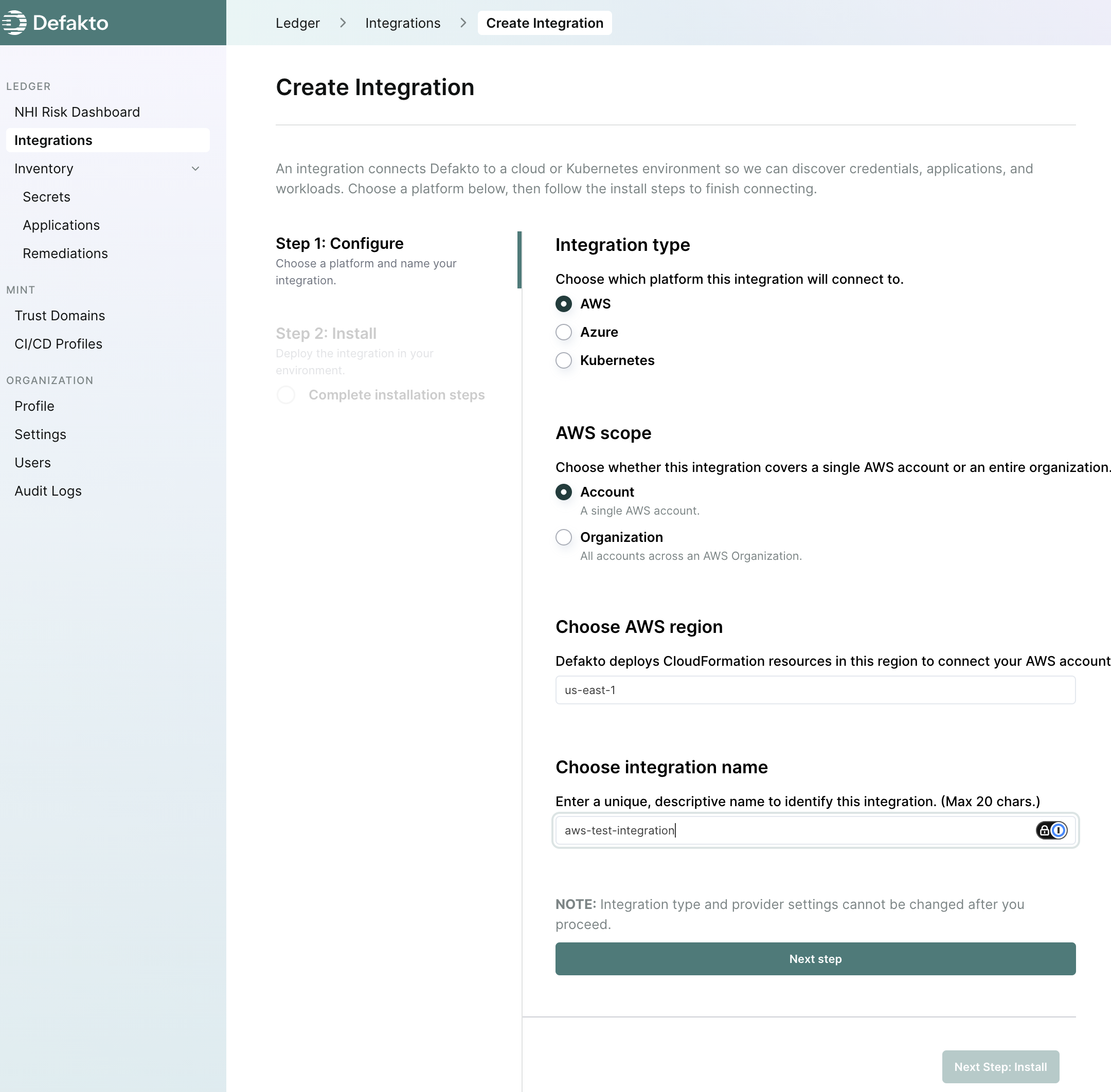
- Select "AWS" from the list of available integrations. Continue configuring the following fields, then click "Next Step" to continue.
- AWS Scope: Select "Account" for configuring a single AWS account, or "Organization" for configuring multiple accounts in an AWS Organization Unit (OU). Selecting "Organization" will automatically onboard new accounts added to the OU. (default: account)
- Integration Name: A unique name for this integration. This will be used to identify the integration in the Console and CLI. (required)
- AWS Region: While the IAM configuration is global, the CloudFormation stack(s) will be deployed to this region. (default: us-east-1)
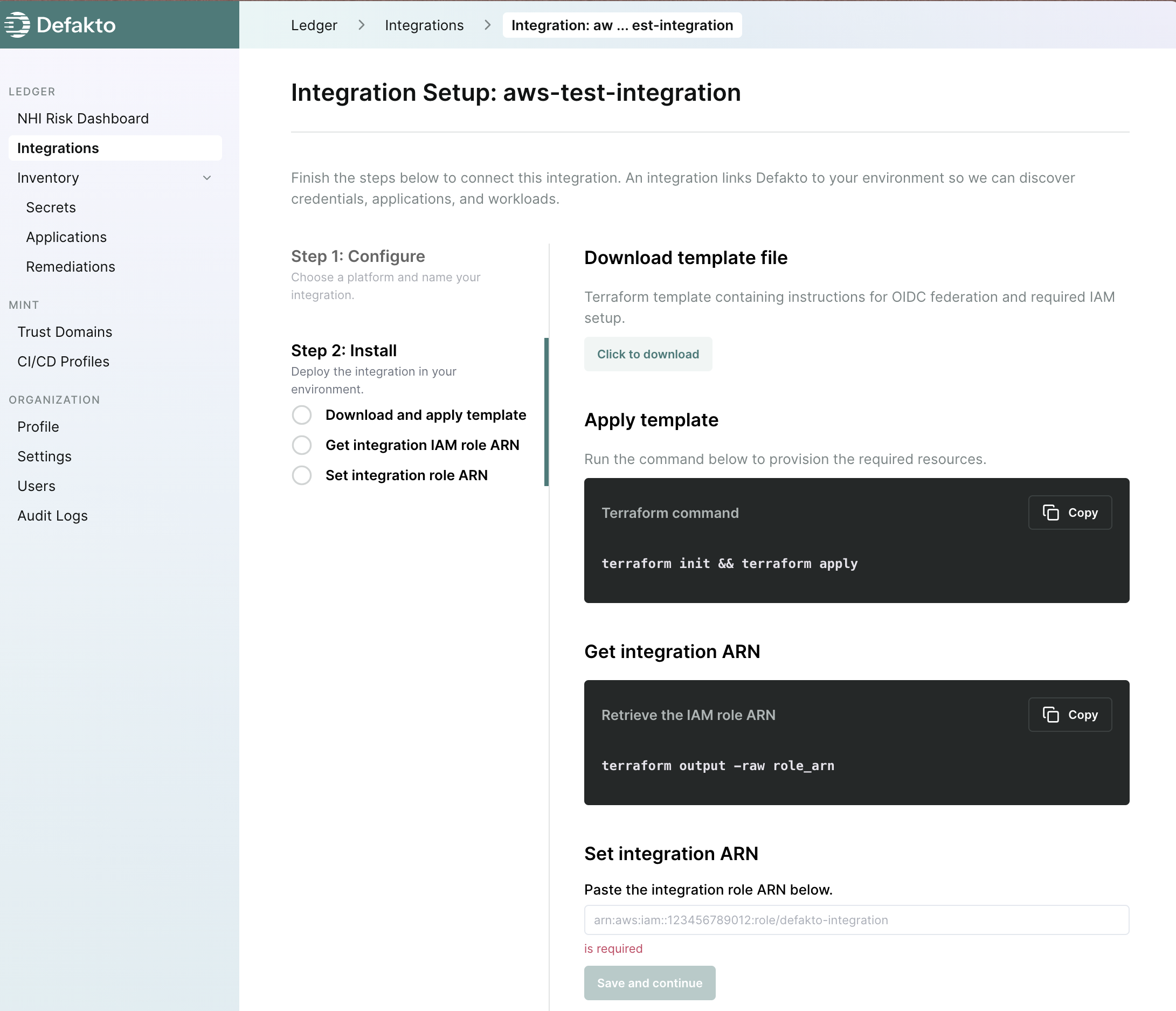
- Follow the on-screen instructions to download the Terraform template for the integration configuration.
Inspect the template and ensure you understand the resources that will be created.
Then execute the commands to apply the template and output the Role ARN. Enter the Role ARN in the Console and click "Save and Continue".
This step also verifies the connectivity between Defakto and AWS, so if there are any issues, you will be notified before moving on.
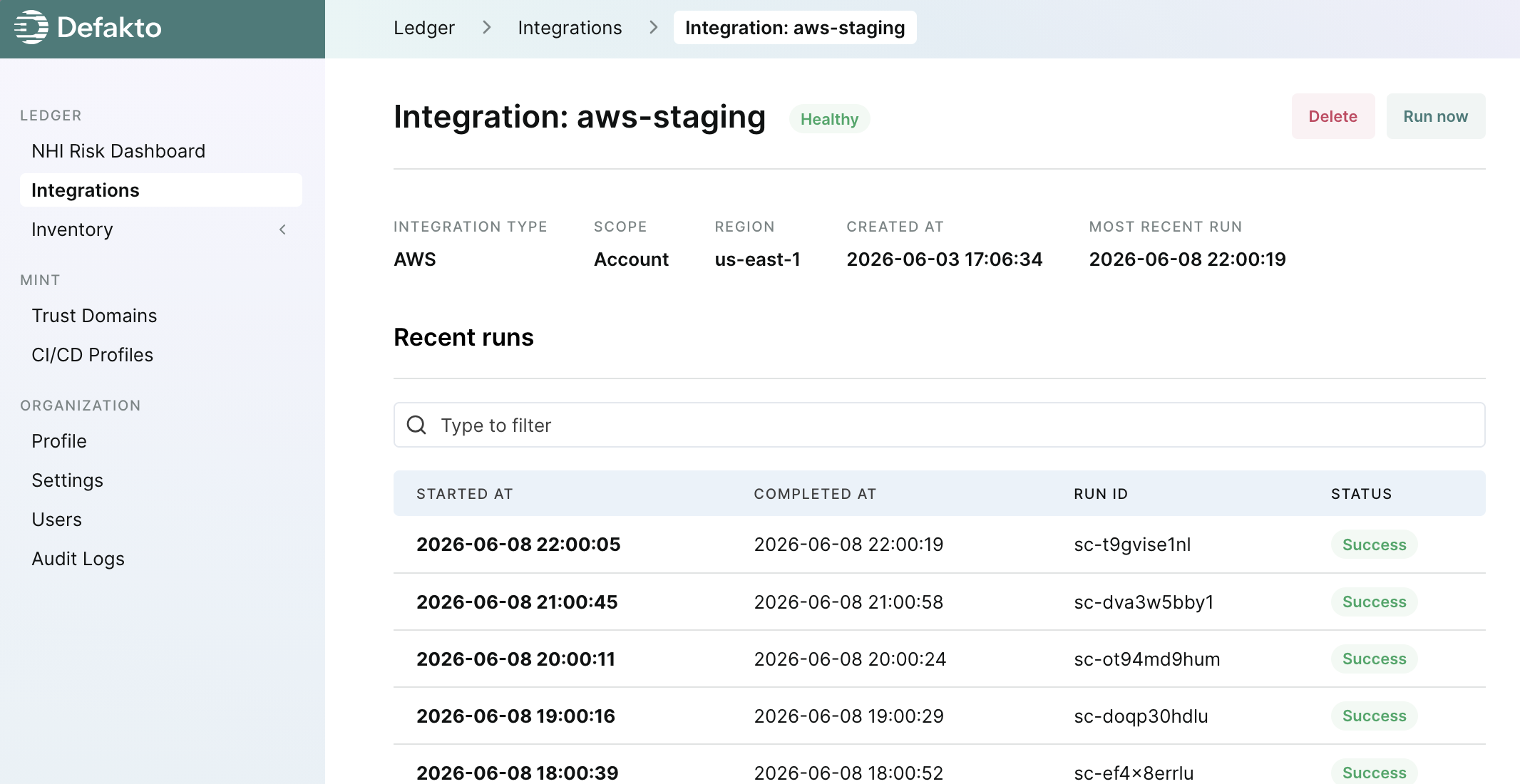
- If the creation was successful, you'll be directed to the integration details page. The integration will automatically start scanning for resources in the connected account(s). Use the "Run Now" button to trigger an immediate scan and refresh the inventory from this integration at any time.